
What this guide covers
This guide explains how Docker applications work on a QNAP NAS and how to manage them in Container Station 3. If you want a complete application example, follow the Nginx Proxy Manager setup.
The existing Ubuntu Docker guide covers installing Docker Engine on a Linux server. You do not need to follow that installation process on a supported QNAP using Container Station.
As an Amazon Associate I earn from qualifying purchases. Hardware links below are affiliate links.
Check your NAS and hardware
- A supported QNAP NAS with QTS/QuTS hero and Container Station installed.
- Administrator access to Container Station and the QNAP shared folders used for persistent data.
- Internet access to the image registry you plan to use.
- Enough free storage for images, writable layers, logs, and application data.
- A backup strategy for persistent application data before experimenting with updates or migrations.
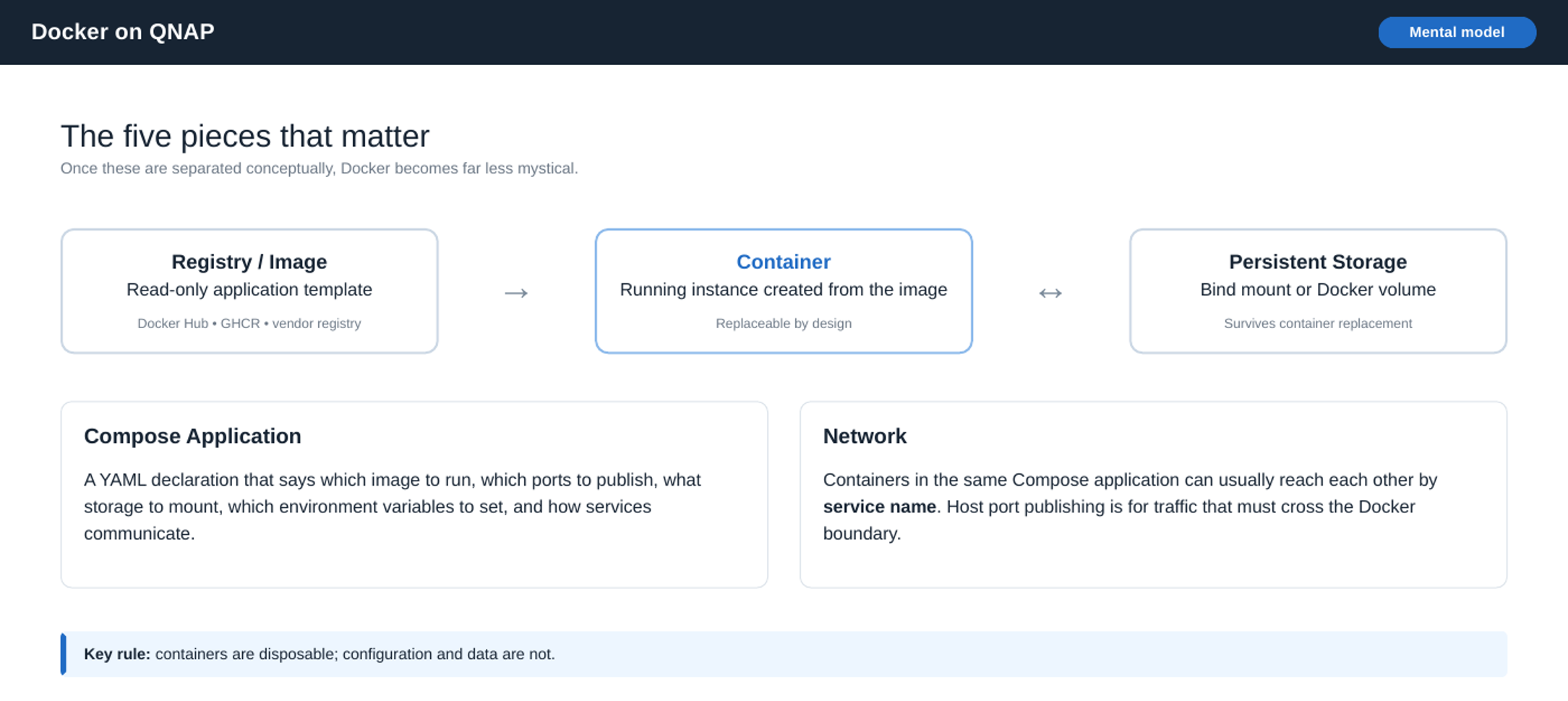
If your existing NAS supports your applications, you do not need to replace it to follow this guide. Check CPU architecture, Container Station support, memory and drive compatibility before buying.
Hardware options
Images, containers and applications
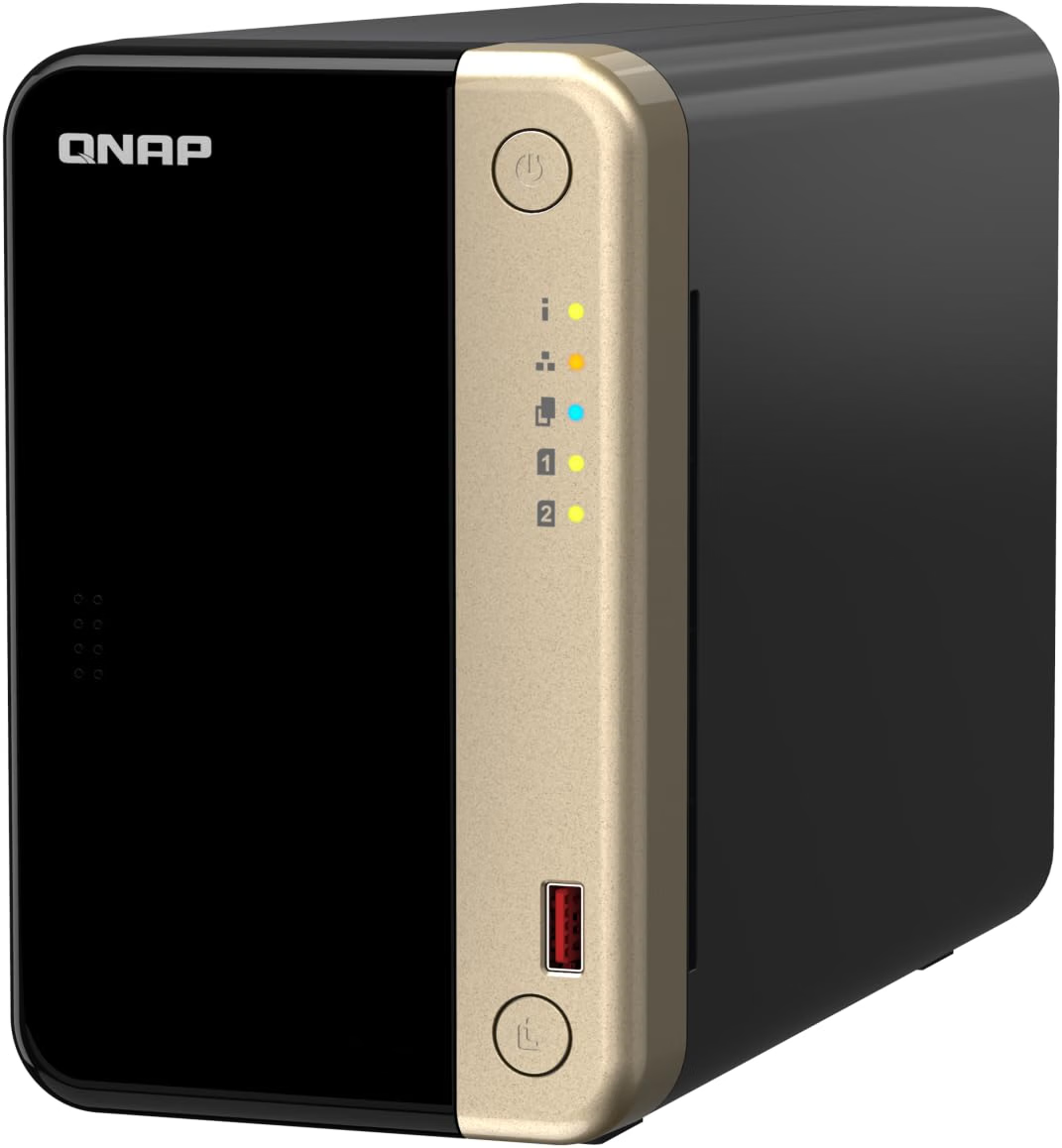
Docker is easiest to understand as a separation of software, runtime state, persistent state, and networking. Container Station adds a management interface around those primitives. Portainer and Dockge are both management interfaces like Container Station.
- A registry stores images. Docker Hub and GitHub Container Registry (GHCR) are common examples.
- An image is the packaged application template.
- A container is a running instance of that image with a writable layer that should be considered temporary.
- Persistent data belongs outside the disposable container layer, in a bind mount or named volume.
- A Compose application describes one or more services, their networks, ports, volumes, environment variables, dependencies, and health checks in YAML.
Container Station can create individual Docker containers through a wizard, but a Compose Application is normally the better long-term choice for self-hosted services.
- The complete deployment is visible in one YAML document.
- Recreating the application is predictable because ports, mounts, variables, and restart behavior are declared.
- Multi-container stacks such as an application plus a database are described naturally.
- Moving the stack to another Docker host is easier because the important configuration is already documented.
- Version control becomes possible: the YAML can live in Git alongside notes and application-specific files.
Plan storage and backups
The container is not the backup unit. The persistent data is. On QNAP, using a dedicated shared-folder hierarchy makes backups and migrations much easier to reason about.
/share/Containers/
  application-name/
    config/
    data/
    logs/       # Only if the application writes logs here
backups/ # Keep a separate backup outside this NAS tooBind mounts vs named volumes
| Storage type | Best fit | Tradeoff |
|---|---|---|
| Bind mount | Configuration and files you want to inspect, edit, back up, or migrate directly from QNAP | Tied to the QNAP host path |
| Named volume | Application-owned data such as a database when vendor docs recommend Docker-managed storage | Less obvious in File Station; manage through Docker/Container Station |
| No mount | Caches and temporary files that can be regenerated | Destroyed with the container |
Choose drives supported by your NAS and sized for the data you expect to keep. RAID does not replace a separate backup.
Hardware options
Create an application
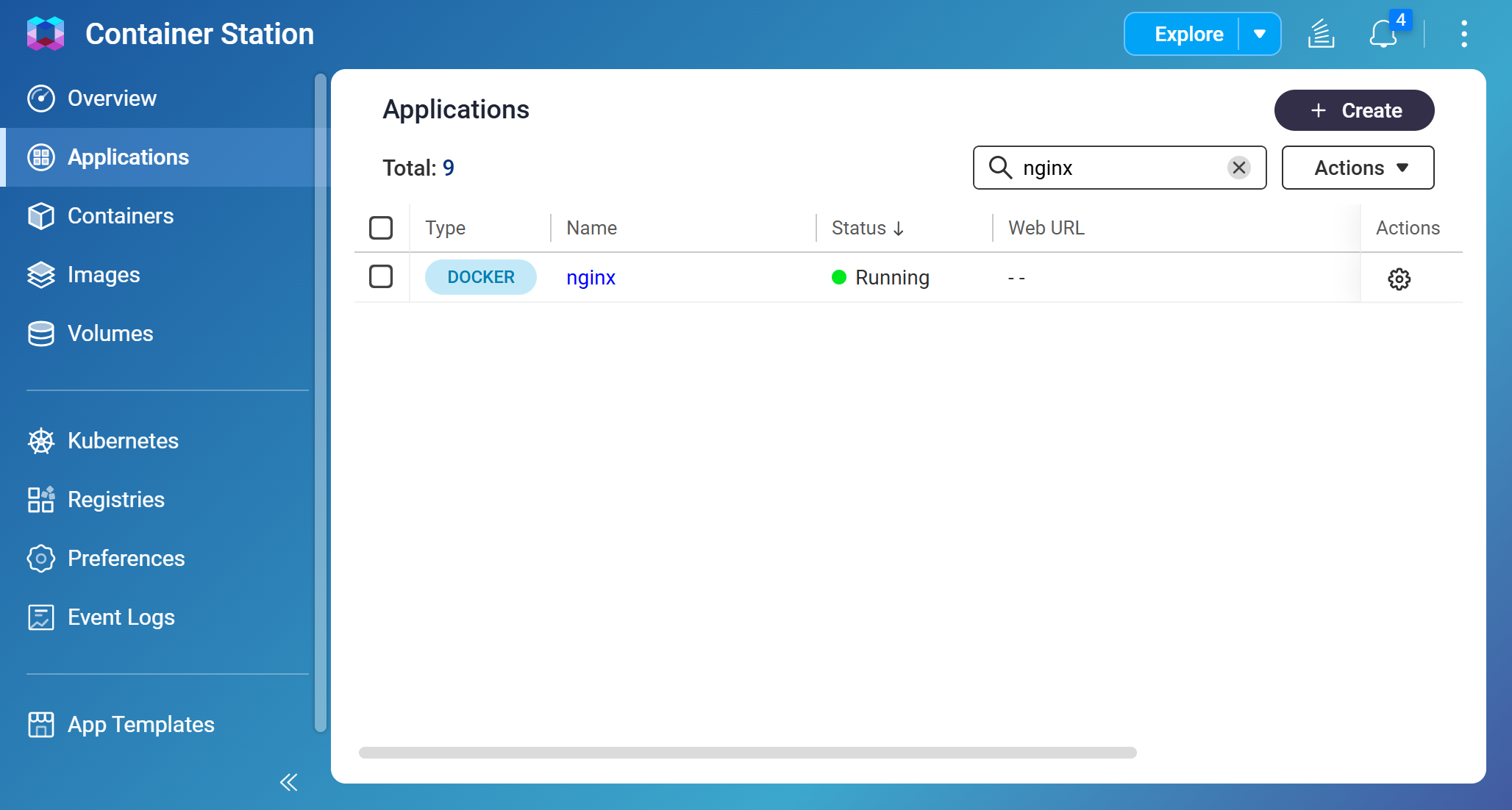
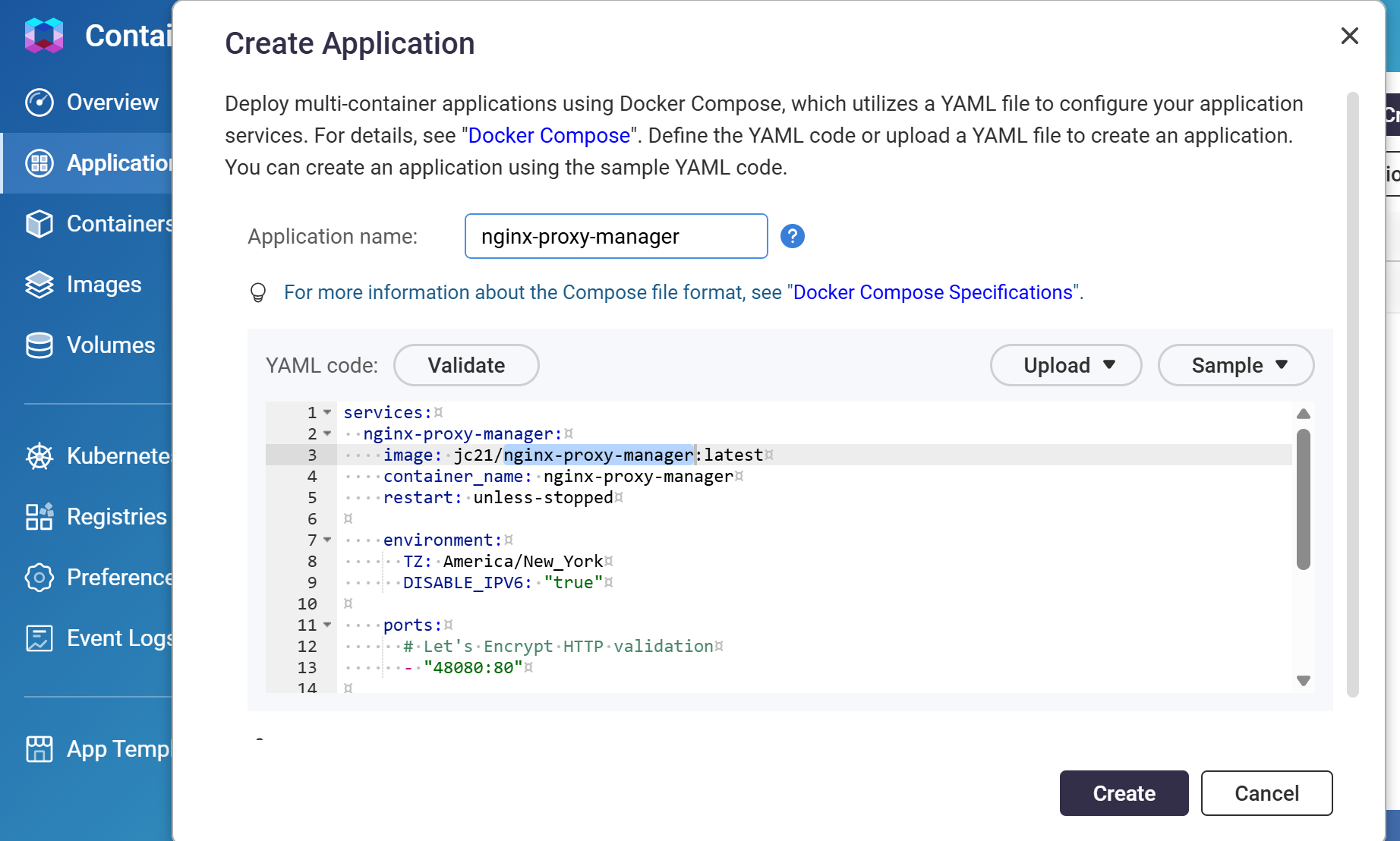
1. Open Container Station and go to Applications.
2. Click Create.
3. Choose a short application name using the characters Container Station permits.
4. Paste the Docker Compose YAML.
5. Click Validate before deployment.
6. Create the application, then review its Logs and Event Logs. A “Running” application doesn’t always mean “working.”
A complete application example
For the actual YAML, folder layout, ports and startup checks, continue with Nginx Proxy Manager on QNAP. Its reverse-proxy setup stays in that article.
Read and adapt Compose YAML
Compose is declarative: the YAML describes the desired service. Container Station then creates the runtime objects needed to satisfy that declaration.
| Key | Purpose | Typical example |
|---|---|---|
| services | Defines one or more application components | web, db, redis |
| image | Registry image and tag/digest | nginx:alpine |
| restart | What Docker does after the process exits | unless-stopped |
| ports | Publishes a container port on the QNAP host | 8088:80 |
| environment | Configuration passed to the process | TZ, application variables |
| volumes | Persistent or shared filesystem paths | /share/...:/config |
| healthcheck | Command Docker runs to judge service health | HTTP probe / app status command |
| depends_on | Controls dependency startup order; readiness needs an explicit condition | Use service_healthy with a working database healthcheck to wait for readiness |
| networks | Explicit network membership when defaults are insufficient | frontend, backend |
| pull_policy | Controls image pulling behavior in modern Compose | always, missing, weekly |
Use this as a starting template. Replace every placeholder according to the image documentation.
# Template only. Replace image, ports, variables and paths for your application.
services:
  app:
    image: registry.example.com/vendor/app:1.2.3
    restart: unless-stopped
    environment:
      TZ: America/New_York
    ports:
      - "HOST_PORT:CONTAINER_PORT"
    volumes:
      - /share/Containers/app/config:/config
      - /share/Containers/app/data:/data
# Add a healthcheck only when the image documents a working test command.Ports and networking
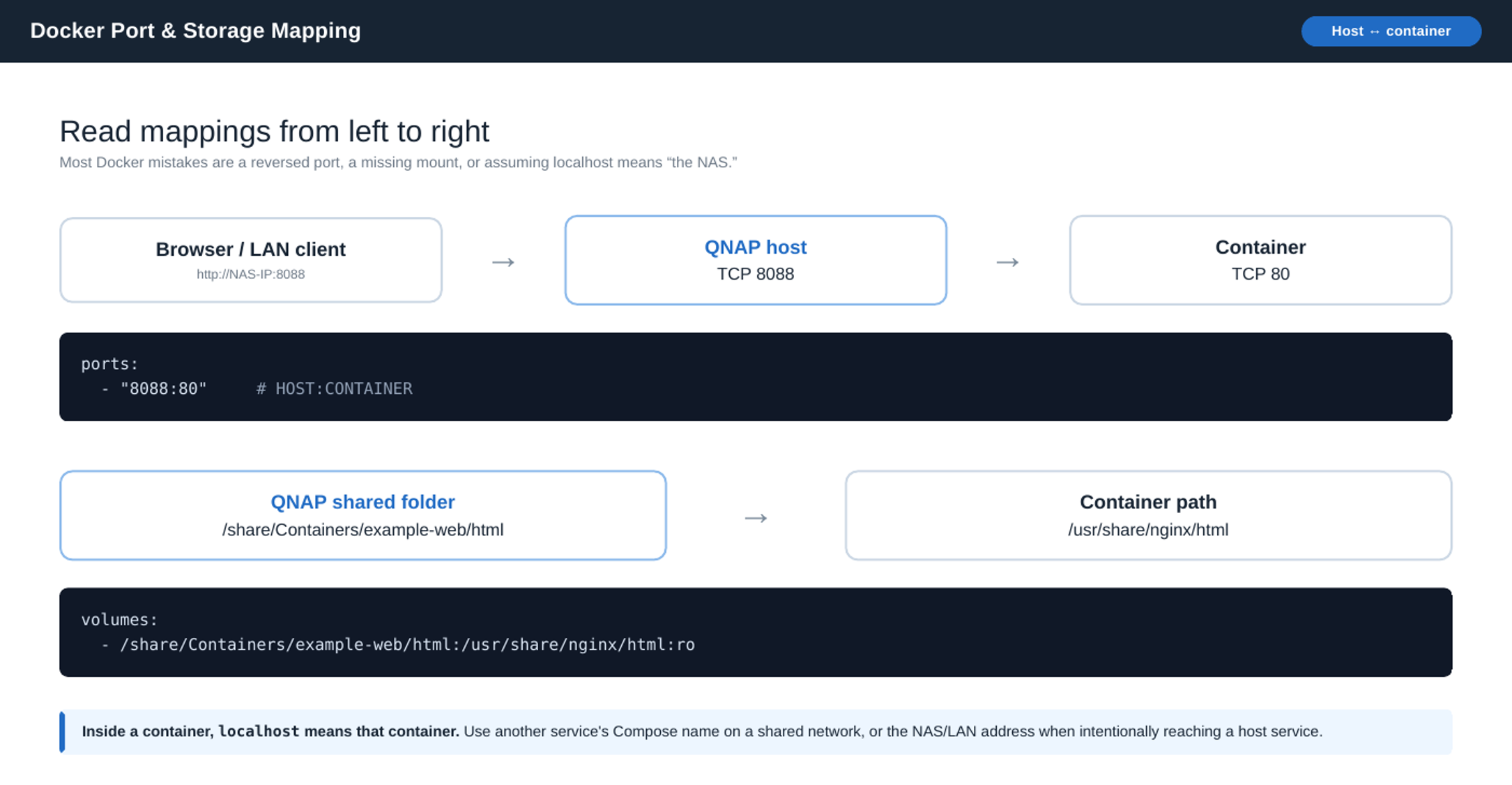
ports:
  - "8088:80"  # NAS host port : container port
A client on the LAN connects to the NAS host port. Docker forwards the traffic to the container port. Router NAT is a separate layer again; Docker does not automatically publish a service to the Internet.
Compose creates a default network for an application. Services on that network can normally resolve one another by service name, which means internal-only services do not need QNAP host ports.
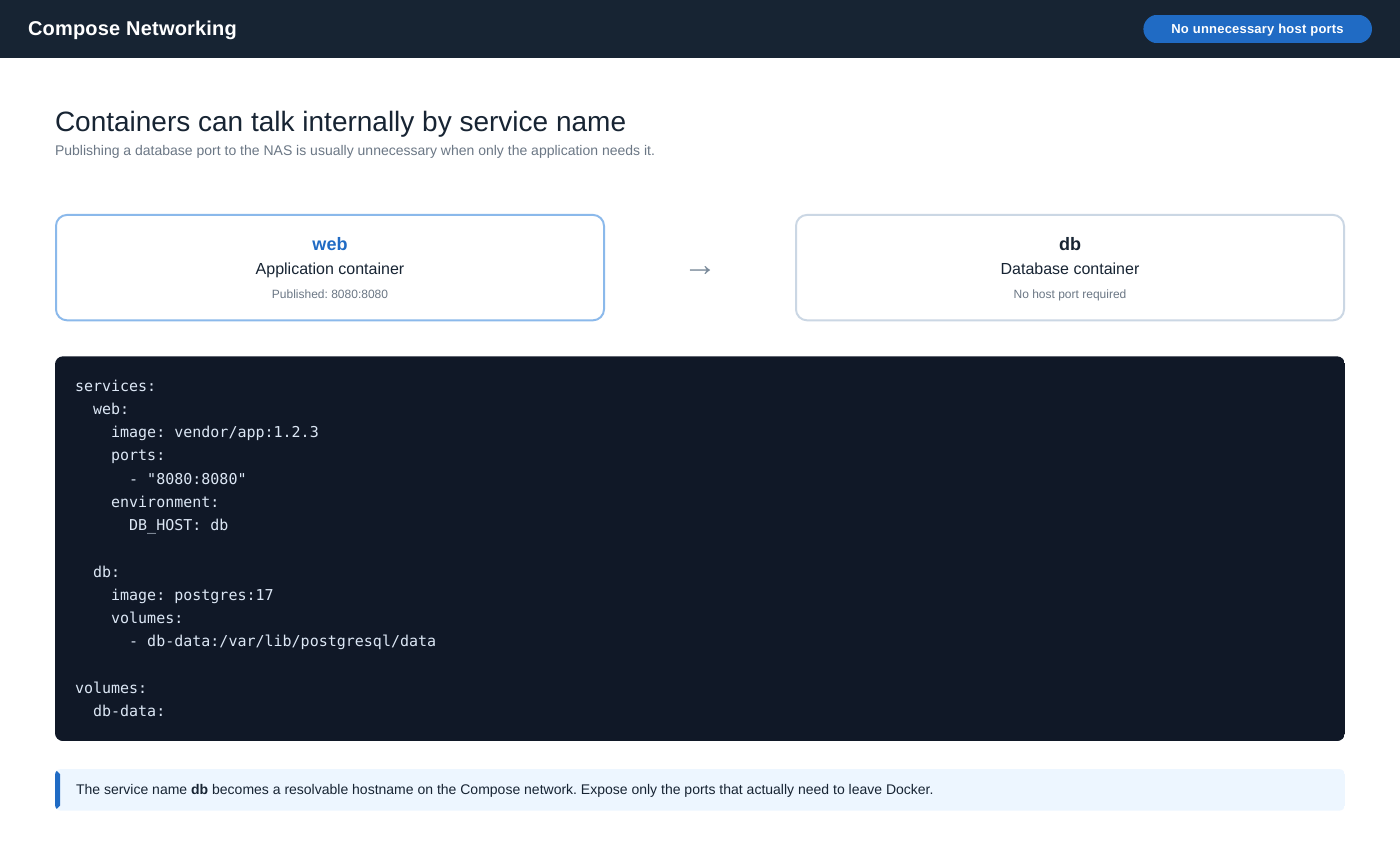
- Publish a port only when a client outside the Compose network needs it.
- Do not publish database, Redis, or internal message-broker ports merely to make the stack work.
- For services in the same Compose application, use the service name as the hostname.
- For cross-application access, either create a deliberate shared Docker network or use a published host port and the NAS LAN address.
- QNAP Container Station also supports additional network modes and VLAN-aware designs, but use them only when the application needs a first-class LAN identity.
Restart policies, health checks and permissions
restart: unless-stopped
healthcheck:
  # Example only: the image must contain curl and expose this health endpoint.
  test: ["CMD-SHELL", "curl -f http://127.0.0.1:8080/health || exit 1"]
  interval: 30s
  timeout: 5s
  retries: 3
start_period: 20s- restart: unless-stopped tells Docker to restart the container when its main process exits, including after Docker/Container Station restarts, unless you intentionally stopped it.
- A healthcheck runs a command inside the container and marks it healthy or unhealthy based on the result.
- A container can be Running but Unhealthy.
- Docker restart policy reacts to the container process exiting.
- Healthcheck commands must actually exist inside the image. Do not paste curl, wget, bash, or an application CLI into a healthcheck without confirming the image contains it.
Most self-hosted images expose configuration through environment variables. Treat the image documentation as the authoritative schema: variable names are application-specific.
environment:
  TZ: America/New_York
APP_MODE: production # Only if documented by this image- If an application supports secret files, Docker secrets, or an external environment file, prefer those over embedding long-lived credentials in a publishable YAML example.
- Many community images support PUID/PGID variables; others use Docker user:. Do not invent UID/GID settings if the image does not document them.
- Use read-only mounts for configuration that the container should not modify.
- Avoid privileged: true, host networking, and broad device mounts unless the application explicitly requires them and you understand the expanded trust boundary.
An unhealthy status alone does not trigger a Docker restart policy. An environment file keeps values separate from YAML but does not encrypt them; protect file access and never commit secrets.
Updates and backups
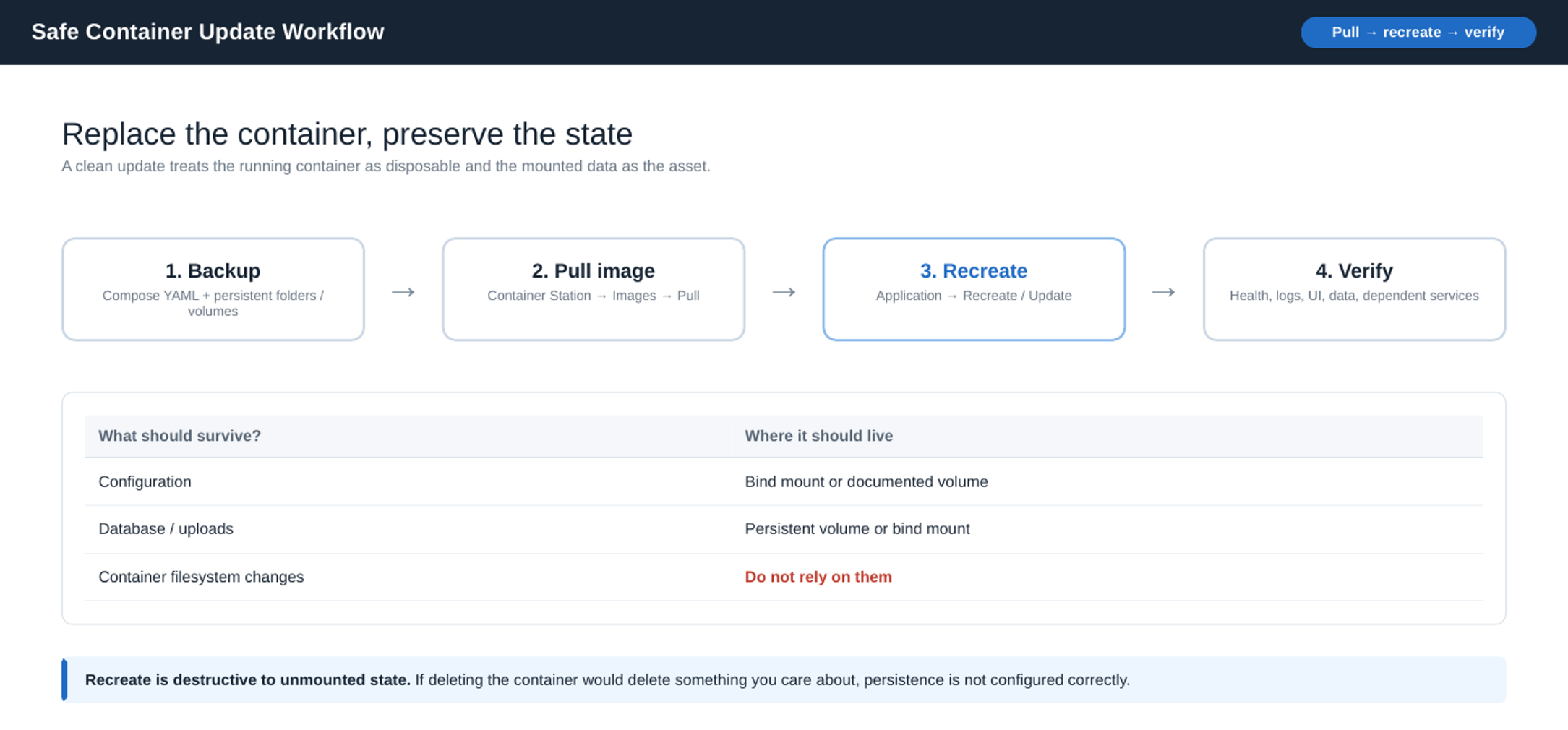
QNAP Container Station can pull a newer image and recreate an Application. Recreating replaces the container runtime state; persistent mounts and volumes are what preserve application state.
1. Read the image release notes, especially for major-version database or configuration migrations.
2. Back up the Compose YAML and all persistent data.
3. In Container Station, go to Images and pull the desired image/tag.
4. Open the Application and use Recreate to apply the updated image or modified YAML.
5. Verify container health, logs, application UI, data integrity, and dependent services.
6. Only after validation, prune unused old images if disk space matters.
| Strategy | Advantage | Risk / cost |
|---|---|---|
| latest | Simple “pull newest and recreate” workflow | A redeploy can introduce a major breaking change |
| Major tag, e.g. app:3 | Receives compatible minor/patch releases if vendor maintains tag discipline | Still changes over time |
| Exact tag, e.g. app:3.8.2 | Reproducible and easy to roll back conceptually | You must deliberately change the YAML to upgrade |
| Digest | Exact immutable image content | Harder for humans to manage; vendor release notes still matter |
- Compose YAML for every Application.
- Bind-mounted configuration and application data directories.
- Named volumes that contain irreplaceable data.
- Application-native exports or database dumps when the vendor recommends them.
- Any certificates, secret files, licenses, or custom configuration stored outside the main application directory.
- A short restore note recording image tags, URLs, and special dependencies.
An exact version tag is more predictable than latest, but a tag can be republished. Pin a digest when you need the exact image bytes. Keep the old image reference and a compatible data backup: starting an older image against a migrated database may fail.
Access and NAS resources
- Publish the minimum number of ports. Internal-only services should stay internal.
- Put Internet-facing web applications behind a maintained reverse proxy and TLS rather than exposing random management ports.
- Do not expose the Docker daemon API to the Internet. Remote Docker control is effectively host-level administrative power.
- Keep Container Station and QTS management interfaces on the LAN or behind a trusted VPN.
- Prefer non-root containers when the image supports them.
- Avoid mounting the Docker socket (/var/run/docker.sock) unless the application truly needs Docker-control access. A compromised socket-enabled container can control other containers and often the host.
- Review community image origin. Prefer official vendor images or well-maintained projects with transparent release history.
- Back up before major upgrades.
Container Station exposes CPU and memory controls for Applications. Limits are useful when a workload can become noisy, but arbitrary limits can also create confusing failures.
- Reserve enough memory for QTS/QuTS hero itself before assigning aggressive limits to containers.
- Databases and media applications may use memory intentionally for caching; high use is not automatically a leak.
- Watch storage consumption from images, logs, temporary layers, and database growth.
- Use Container Station inspection/log views and QNAP resource monitoring together when diagnosing performance.
Troubleshooting and CLI reference
| Symptom | Likely cause | Check first |
|---|---|---|
| Application will not create | Invalid YAML or unsupported setting | Validate YAML; compare with current image/Compose documentation |
| Port already allocated | Another container or QNAP service owns the host port | Change host port or stop the conflicting listener |
| Container starts then exits | Bad environment, missing dependency, permission error, invalid command | Application/container logs |
| Permission denied on mounted folder | UID/GID or QNAP ACL mismatch | Image documentation + shared-folder permissions |
| App lost data after recreate | Data was stored only in the container writable layer | Restore backup; add correct persistent mount |
| Container cannot reach sibling | Wrong hostname/network | Use Compose service name; confirm shared network |
| Container cannot reach NAS service via localhost | localhost points to the container itself | Use NAS LAN IP or appropriate host gateway path |
| New image pulled but app still old | Running container was not recreated | Recreate Application and verify image ID/tag |
| Healthy internally but unavailable externally | Router/reverse-proxy/DNS/TLS path is broken | Test each network layer separately |
| NAS storage keeps shrinking | Old images, logs, writable layers, application data | Inspect images/volumes and prune only what is truly unused |
Container Station is sufficient for most routine management. If you use a shell where the QNAP Docker/Compose CLI is available, these are the concepts worth knowing. Container Station 3 follows Compose V2 naming, so use docker compose rather than docker-compose.
docker ps
docker compose ps
docker compose logs -f
docker compose exec SERVICE COMMAND
docker compose config
docker image ls
docker volume ls
docker system df
# Updates, after reviewing release notes and backing up data:
docker compose pull
docker compose up -d